Add members of your team and assign them access with complete autonomy!
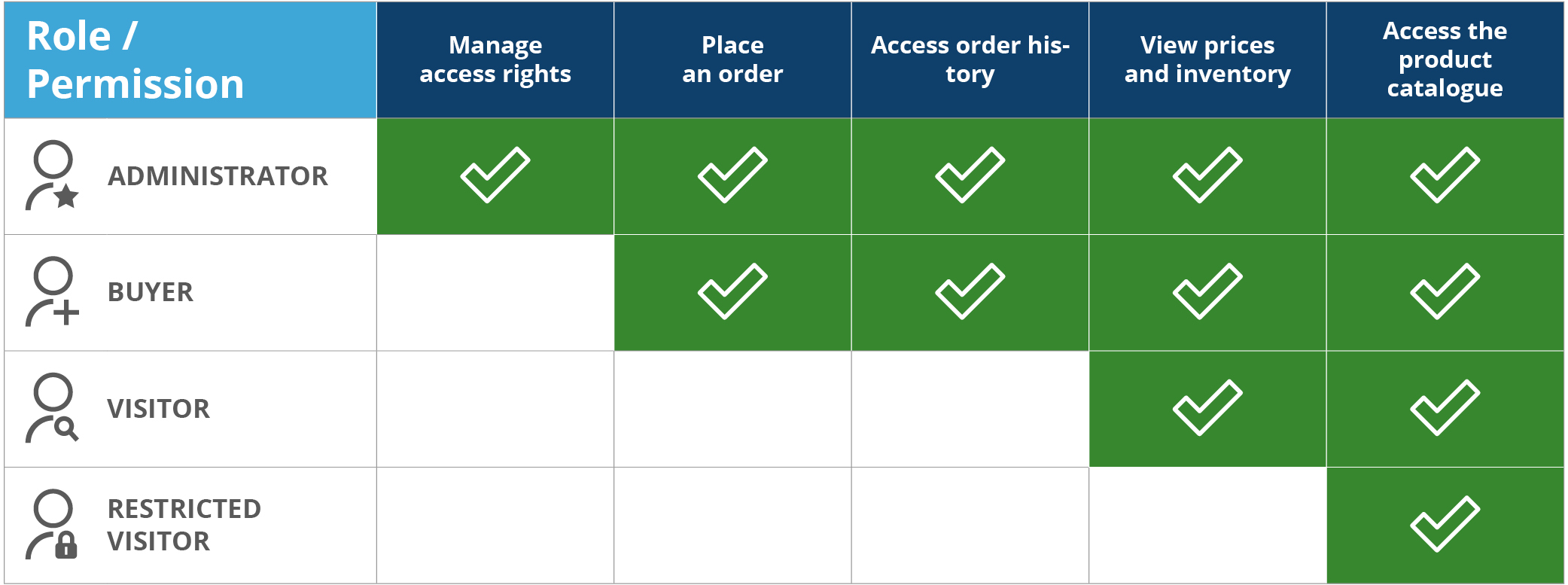
Four roles, each with specific permissions, can be assigned to members of your establishment.
Roles and permissions
1. Restricted visitor
Team member who needs to browse the product catalogue for the sole purpose of viewing the products, without needing to view prices or inventory (ex.: animal caretaker).
-View the content of the site
-View the product catalogue without prices and inventory
2. Visitor:
Team member who needs to browse the product catalogue and pass on information such as price and/or product availability (ex.: receptionist).
-View the content of the site
-View the product catalogue, including prices and inventory
3. Buyer:
Team member who is responsible for placing orders for the establishment.
-View the content of the site
-View the product catalogue, including prices and inventory
-Place orders
-View the order history for the account
-Create, edit, or delete a shopping list
4. Administrator:
A manager who is responsible for managing user rights and access for their establishment (manager, head technician, clinical director, or other).
-View the content of the site
-View the product catalogue, including prices and inventory
-Place orders
-View the order history for the account
-Add, modify, or delete a member’s access
-Create, edit, or delete a shopping list
Process
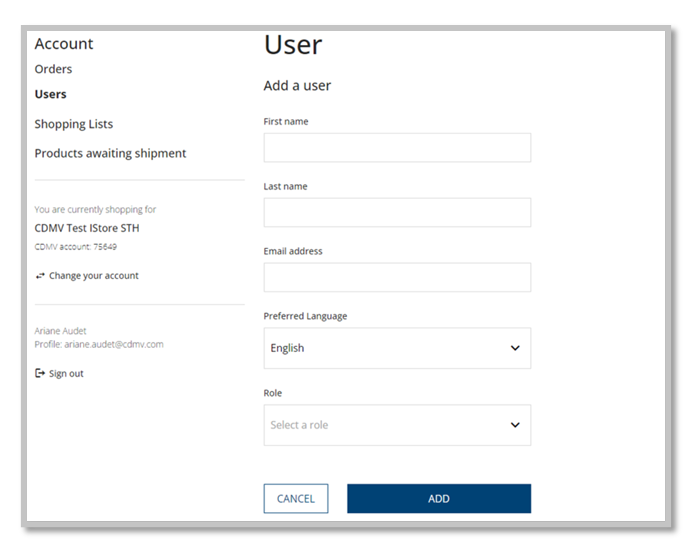
To create a user:
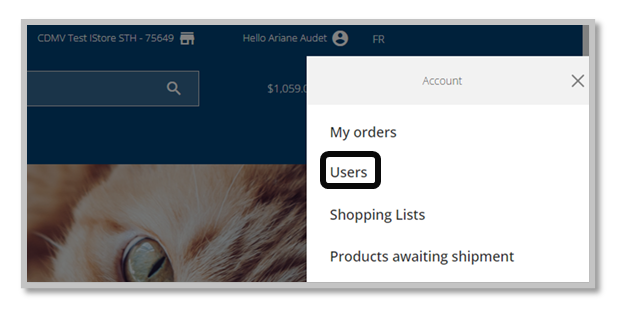
1. Access the “User Management” functionality by selecting your establishment’s name (at the top right). Then click on “Users.”
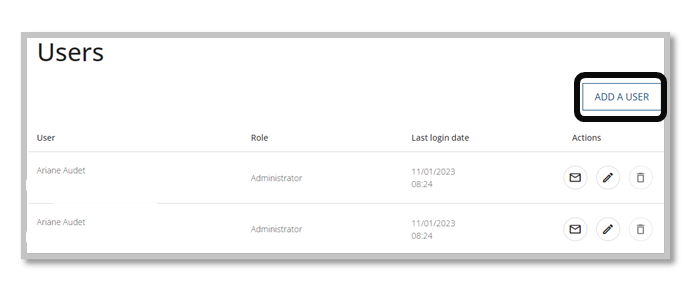
2. Select the “Add user” button.
3. Fill in the required information.
4. Select “Add” or “Cancel.”
Once the user is added, an email invitation will be sent to them with the steps to create their password.
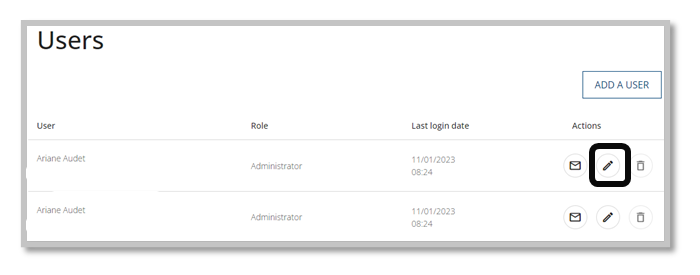
To modify a user:
1. Click on the pencil icon.
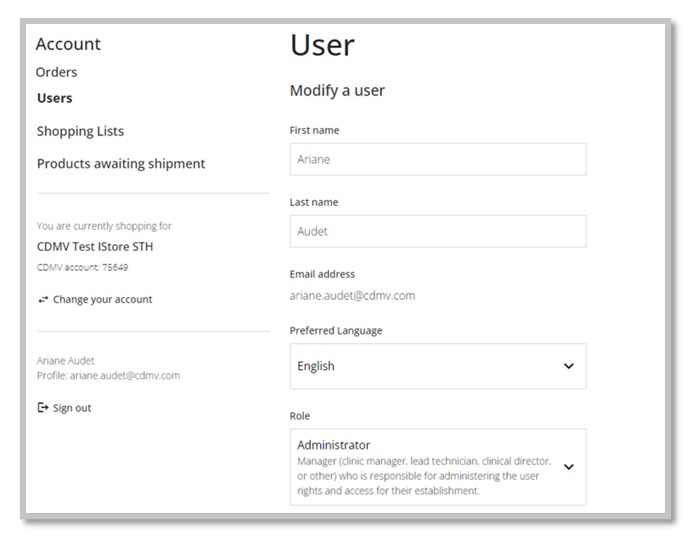
2. Edit your information.
3. Click on “Save” or “Cancel.”
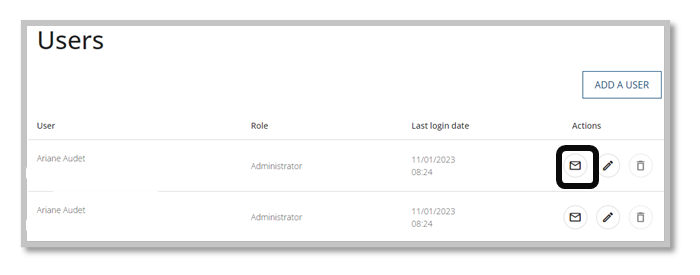
To invite a user again:
1. Click on the envelope icon.
An email will be sent to that user with the steps to create their password.
To delete a user:
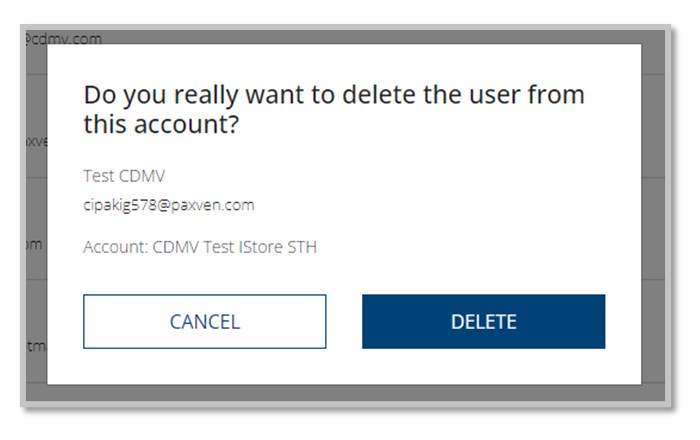
1. Click on the trash can icon.
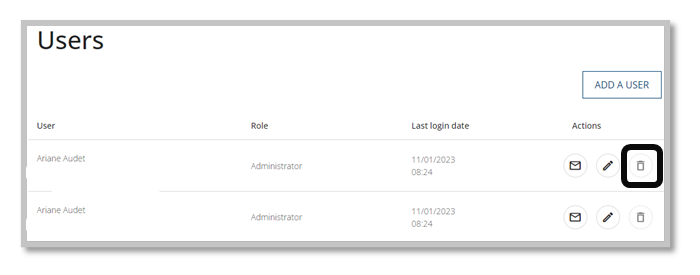
2. Confirm your choice by clicking on “Delete.”
Once the user is deleted, they will no longer be able to log in. An error message will appear.